

Cloud Backup & Sync
Should you enable this optional feature? Read and decide.

Cloud Sync & Backup is switched off by default. This page will help you to decide whether you want to activate it. Better Clipboard will save plenty of your time without this feature but even more if you activate it. Read below, understand and make your decision whether to activate it.
The most reliable backup
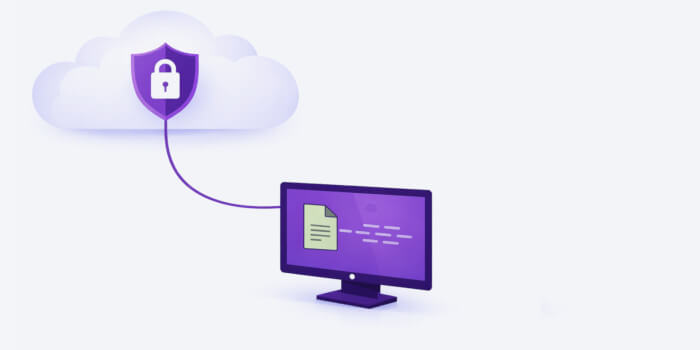
- Next time you install Better Clipboard it will give you access to the data you collected on your old computer.
- Did your computer crash? Not your Better Clipboard clips!
- There is no need to have any cloud service client installed on your PC/device. All you need is a valid cloud service provider account.
Sync up clips across all your devices
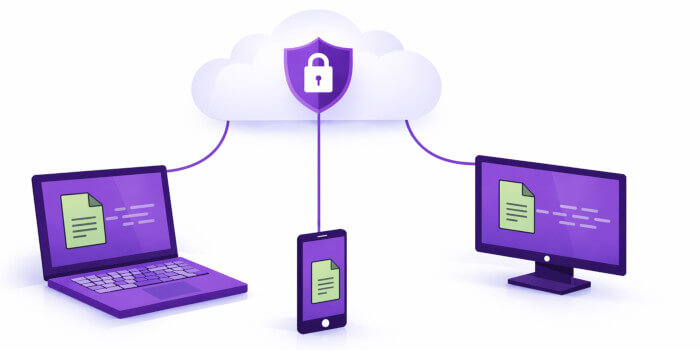
- Your clips can be synced across all your PCs and mobile devices.
- One of the fastest way how to send text or image from one of your devices to another.
Why is it safe?
- All your data is encrypted which means your cloud provider cannot read / see it.
- Better Clipboard developers do not have any access to your local computer nor your cloud provider servers.
- Only you own the combination of the 2 above factors. That means only you have access to your unencrypted data.
How does it work?
Better Clipboard uses your chosen cloud provider – such as Google Drive, OneDrive, or Dropbox – in a way that is very similar to how you already use it yourself. Have you ever uploaded a photo or text file to Google Drive and then synced it to another computer? Then you have already done something very similar to what Better Clipboard does.
The key difference is security. Better Clipboard adds one more security layer on top of your cloud provider’s built-in security. It encrypts your data into an unreadable stream of characters and splits your clips into separate data chunks that only Better Clipboard can reassemble. However only in the case YOU unlock it with your encryption key!
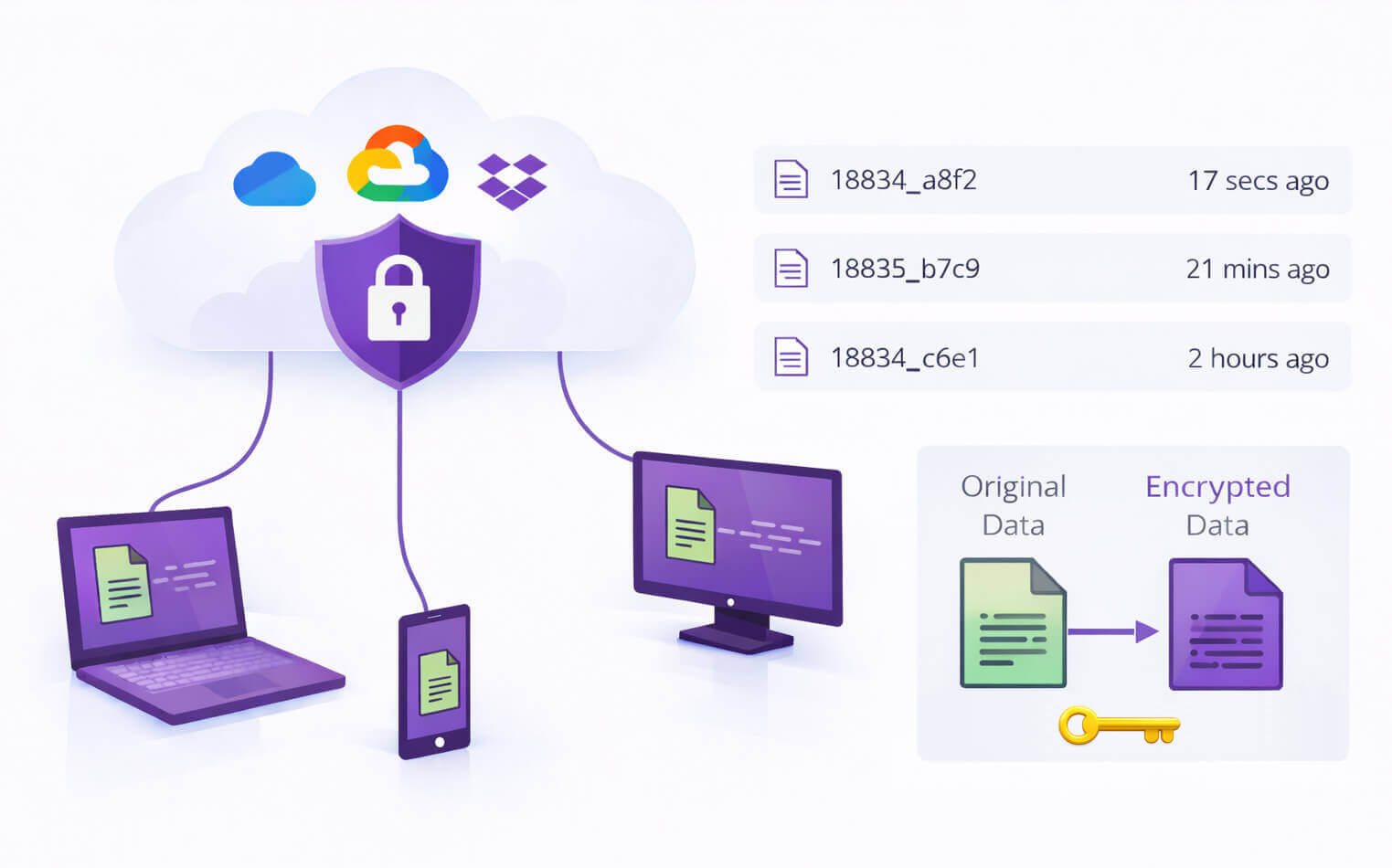
Your cloud provider can store your data, but cannot read it. Better Clipboard can decrypt your data, but cannot access your cloud files directly. Only you hold the key that connects the two. Treat your encryption key like a password – if you lose it, you lose access to your data.

Limitations
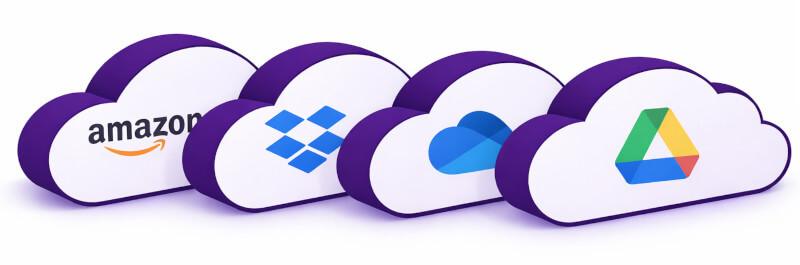
At the moment only Google Drive is available as Better Clipboard cloud provider. Support of the other cloud services (OneDrive, Dropbox, Amazon Drive, etc.) will be added upon users’ demand.
How to enable Cloud Sync – Tutorial
1) Click the “Cloud Sync & Backup” button

2) Select the cloud service

3) Click the “Auth via…” button. It will open our web page in your browser.

4) Sign in to your cloud provider account. Copy the text in your browser to your OS clipboard

5) Click the “Close” button

6) Notice the cloud symbol. The Cloud Sync feature should be active by now.
